Onboarding devices to Microsoft Defender for Endpoint with Intune


Introduction

Defender for Endpoint (Formerly Defender ATP) is Microsoft’s enterprise grade endpoint protection solution which provides prevention, detection, investigation and response to advanced threats. I regularly work with customers who already use Defender anti-virus and want to dip their toes into the enhanced capabilities of Defender for Endpoint (MDE).

What are the steps to onboard a device already being managed by Microsoft Endpoint Manager?

Prerequisites

Firstly, obtain licensing. I recommend Microsoft Defender for Endpoint Plan 2.

Identify a Windows device or several devices for the test. These need to be active devices in MEM.

An Azure AD security group containing the devices/users in scope for the test needs to be created.

Browse to the Microsoft 365 Defender web page, if Defender hasn’t been previously enabled, click through the ‘first run’ options to choose region, data retention etc. 

Then enable “Microsoft Intune Connection” under Settings -> Endpoints -> Advanced features. This connection may take up to 24 hours to establish.


Configuration

Now we’re ready to target a configuration profile to onboard a device with MDE.

To create the configuration profile within the MEM admin center, browse to Endpoint security -> Endpoint detection and response and create a new policy.

The onboarding blob is automatically created by the connection between MEM and MDE, so no further configuration is required in the profile here.


Once the profile is created, assign to the security group containing users/devices in scope for the test.

If all has gone well, the device will appear in the “Devices” section of the Microsoft 365 Defender page.

Testing

Once the configuration profile has been received by the device and telemetry has been sent to MDE, you’ll begin to see data in Microsoft 365 Defender webpage.

To test the connection with MDE, we can trigger a test alert by running the command line shown in the Onboarding section of Settings -> Endpoints.


A great way to verify MDE is working is to disable automated patching on the test device (exclude from Windows Update Rings). This will eventually result in the device to become behind in patching levels and further data will appear in Microsoft 365 Defender about known vulnerabilities.


Conclusion

Hopefully this post has provided some quick steps to onboard a test device or devices into Microsoft Defender for Endpoint ready for demonstration of further features.

I will be publishing more posts which demonstrate some of the excellent features MDE has to offer.

Next Post - Laying the foundations in Microsoft Defender for Endpoint


Onboarding remote devices with Microsoft ConfigMgr or Intune


 Introduction

The end user computing landscape has drastically changed over the last few years due to the drive towards remote working, and with this comes a need to rethink device management.

For Windows devices, ConfigMgr or Intune have been the go-to solutions from Microsoft under the Endpoint Manager umbrella. The combination of the two platforms brings a truly comprehensive approach to managing a Windows estate.

Since the adoption of remote working, I’ve regularly been asked about how to onboard or migrate VPN connected, Active Directory domain joined Windows devices into Microsoft Endpoint Manager with the least amount of IT staff intervention. In this post, I’ll look a couple of scenarios I’ve encountered and how I dealt with each one with some high-level bullet pointed steps. It is assumed that ConfigMgr and Intune have already been configured up to the point of being functional.

Disclaimer: This is not a how-to guide, it's more about explaining the options available. I provide links for further reading.

Scenario 1

Requirement:

VPN connected clients need to be managed with ConfigMgr.

Scenario:

o   Devices never return to office

o   AD domain joined only

o   No ConfigMgr Client installed

Solution:

1.       Create GPO with ConfigMgr site assignment and client deployment settings (Excellent how to guide here)

2.       Add software package installation to GPO using ccmsetup.msi hosted on a contactable file share

3.       Link GPO to OU containing target devices

Explanation:

With a few basic configuration changes, it’s possible to take a large number of remotely connected devices from a position of no management to being fully managed with ConfigMgr.


Scenario 2

Requirement:

Co-management with a CMG is needed to manage devices.

Scenario:

o   AD domain joined only

o   ConfigMgr Client installed

o   No Cloud Management Gateway

Solution:

1.       Configure Azure AD Connect for Hybrid AAD join  (More details)

2.       Manually create a Group Policy to apply the client-side SCP registry entry (More details)

3.       Configure Intune Automatic Enrollment and Co-management settings in ConfigMgr (More details)

4.       Provision a Cloud Management Gateway (More details)


Explanation:

A more modern approach to device management can be achieved with co-management. Once these configuration changes have been implemented, Intune could be used to manage workloads such as Software Updates or Compliance while ConfigMgr remains in play for other tasks such as App deployment and inventory. A CMG will allow ConfigMgr to continue managing devices even when they’re internet-based (out of the office and disconnected from VPN).

Of course, once the devices are in this co-managed state, there is scope to transition away from ConfigMgr and aim for fully modern-management.


ConfigMgr CMG "Failed to list keys for storage service"

 When provisioning a vm scale set ConfigMgr Cloud Management Gateway and the following errors are shown in the CloudMgr.log:


ERROR: TaskManager: Task [AnalyticsCollectionTask: Service xxxxxxxxxx] has failed. Exception Hyak.Common.CloudException, Failed to start deployment slot.

ERROR: Resource Manager - Failed to list keys for storage service xxxxxxxxxx with status code NotFound. Check [Monitor/Activity log] on Azure Portal for more information


Ensure the Azure ConfigMgr Server Application has been granted at least contributor rights in the Azure subscription being used.


ConfigMgr CMG provisioning error "Failed to finish deployment"

 When deploying a ConfigMgr Cloud Management Gateway to Azure using VM scale sets and you receive the following error in CloudMgr.log:

ERROR: Resource Manager - Deployment operation details: {"value":[{"id":"/subscriptions/xxxxxxxxxxxx/resourceGroups/xxxxxxxx/providers/Microsoft.Resources/deployments/CreateKeyVaultd7fa35f7-7f9a-4a49-b780-2e3d267f29a3/operations/4B42A1CC456C4E8A","operationId":"4B42A1CC456C4E8A","properties":{"provisioningOperation":"Create","provisioningState":"Failed","timestamp":"2022-08-24T09:29:33.5616488Z","duration":"PT0.2383212S","trackingId":"f183ade1-5a45-4cd4-ab63-b3ca7801f48a","statusCode":"Conflict","statusMessage":{"error":{"code":"MissingSubscriptionRegistration","message":"The subscription is not registered to use namespace 'Microsoft.KeyVault'. See https://aka.ms/rps-not-found for how to register subscriptions.","details":[{"code":"MissingSubscriptionRegistration","target":"Microsoft.KeyVault","message":"The subscription is not registered to use namespace 'Microsoft.KeyVault'. See https://aka.ms/rps-not-found for how to register subscriptions."}]}},"targetResource":{"id":"/subscriptions/6f6636c7-bca4-43df-af17-190bcc9992d5/resourceGroups/xxxxxxxxxx/providers/Microsoft.KeyVault/vaults/xxxxxxxxxx","resourceType":"Microsoft.KeyVault/vaults","resourceName":"xxxxxxxxxxxxxx"}}}]}

You'll need to log on to the Azure portal and perform the following:

1. Find the Azure subscription being used for the CMG and select it

2. Select "Resource Providers" on the left hand side

3. Register "Microsoft.KeyVault", "Microsoft.Compute" & "Microsoft.Network"

4. Within a few seconds the Resource Providers will have been registered.

5. Retry CMG provisioning from ConfigMgr console (delete previous attempt and re-provision.)

Implementing Role Based Access Control (RBAC) with ConfigMgr Part 1 - Basic Security Roles

Part 1 - Implementing RBAC with ConfigMgr - Basic Security Roles
Part 2 - Implementing RBAC with ConfigMgr - Security Scopes [COMING SOON]
Part 3 - Implementing RBAC with ConfigMgr - Multiple Regions [COMING SOON]


Introduction

ConfigMgr is a very powerful tool, it can be used to refresh hundreds of computers with the latest operating system, deploy patches to servers and trigger reboots, provide remote access for service desk staff, and deploy applications across large environments. Which is why having the appropriate access controls in place and adhering to the principle of least privilege, is paramount.

Over the course of these blog posts I'll be providing guidance on how to implement RBAC at a basic level, demonstrating the effects of RBAC, and outlining a more complex scenario involving multiple administrative regions.

I'm going to make the assumption you've read the Microsoft doc surrounding RBAC in ConfigMgr so we can jump straight into configuring. 


Scenario

The requirements here are simple, users who access ConfigMgr need to be granted access based on their role within the organisation. The following organisational roles need to be catered for:
  • ConfigMgr admins - Responsible for ConfigMgr operations, day to day tasks require full control of all objects.
  • Server admins - Members of the server team responsible for maintaining Windows servers.
  • Desktop admins - Members of the desktop team responsible for maintaining Windows desktops.
  • Service desk admins - Support the end user environment and require limited functionality within ConfigMgr.
  • Security auditors - Responsible for auditing organisational platforms, read only to all objects is sufficient.

Collection Limiting

You can skip to the implement section to get going, but one important thing to note is the distinction between server and desktop admins; both groups of admins should only be able to see devices relating to their role, i.e. server admins can only see servers, desktop admins only able to see desktops. Depending on the maturity of your ConfigMgr implementation, this may require a substantial amount of re-engineering.

To create this split, each admin group needs to be scoped to a device collection containing all servers or all workstations depending on role. Easy right? 
When implementing in a fresh environment maybe, however, the device collection used to scope needs to become the parent device collection for all device collections you want the admins to see.

For example, you have the following security groups and associated device collection scoping:

Server admins - Scoped to "Windows Servers" device collection
Desktop admins - Scoped to "Windows Desktops" device collection

The following custom device collections have been created with the limiting collection in brackets:

Windows 2016 Servers (Windows Servers)
*Deploy VMWare Tools (All Desktop and Server Clients)
Windows 10 Desktops (Windows Desktops)
*Deploy O365 ProPlus (All Desktop and Server Clients)

Neither a server admin or a desktop admin would be able to see the device collections highlighted with *.

To rectify this, simply change the limiting collection on both highlighted device collections. This can either directly reference the scoping collection or a "child" device collection. E.g.:

Windows 2016 Servers (Windows Servers)
Deploy VMWare Tools (Windows Servers)
Windows 10 Desktops (Windows Desktops)
Deploy O365 ProPlus (Windows Desktops)

You'll need to review the device collections in your environment and plan ahead for this.


Implement

Prerequisite: Import these operational device collections provided by Benoit Lecours.

1. Create device collection hierarchy

a. Create a new device collection folder called 'RBAC Collections' containing all RBAC related collections. For this scenario we only need two.

b. Create the following device collections in the RBAC Collections folder. Apply an incremental or regular collection evaluation schedule and include the device collections shown (from TechNet import).


(You'll also need to make sure the operational collections used above are set to incremental or a regular schedule)


2. Create Active Directory security groups

Create the following security groups in Active Directory


3. Add security groups to ConfigMgr security

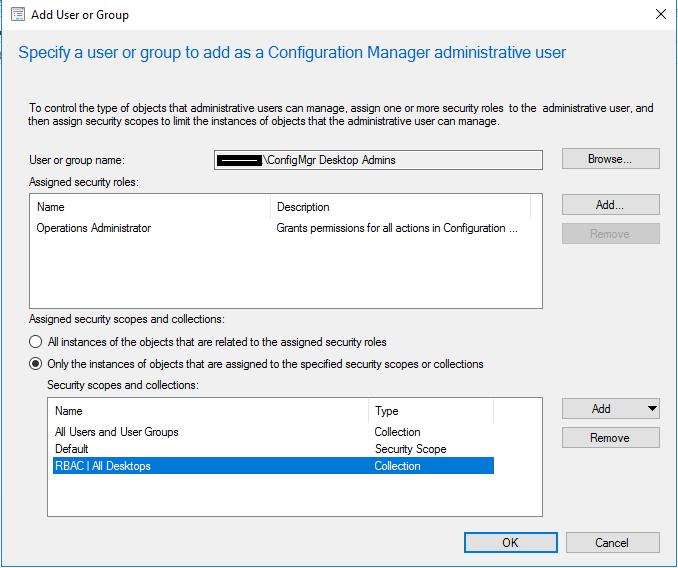
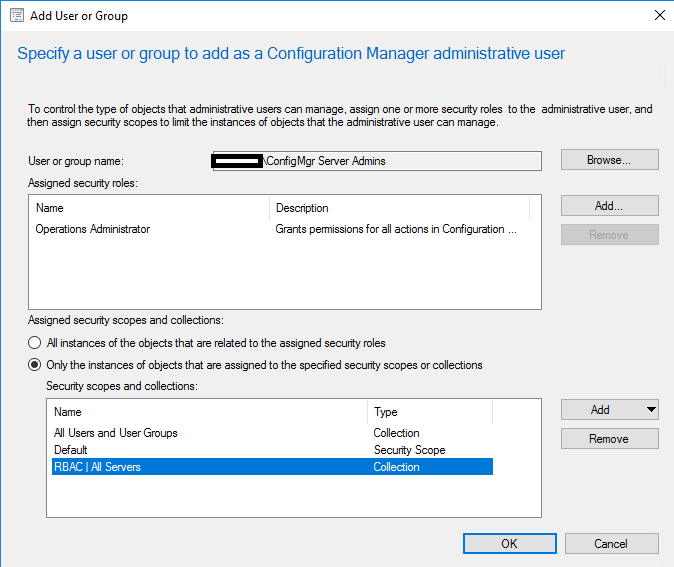
a. In the ConfigMgr console, browse to Administration > Security > Administrative Users and hit Add User or Group.

b Add each ConfigMgr AD security group as outlined in the images below, take note of the assigned security scopes and collections for each:


4. Update limiting collections

Change the limiting device collection on collections you identified as needing to be scoped to either desktops or servers. This will vary between environments so I can't offer much more guidance here.

In the past, this PowerShell helped me bulk update limiting collections. 


Validate

At this point you should be able to add users into your ConfigMgr AD security groups and the console will be presented in a way which suits their role.

As an example, here is what the console looks like for a user with the service desk admin role. A very cut down view.


With fewer options available at the device level. Enough for service desk staff.


Conclusion

Hopefully this has provided an insight into the RBAC capabilities within ConfigMgr. This is just a basic example of how it can be used but it should satisfy most scenarios where ConfigMgr is used across multiple teams. Part 2 and 3 coming soon...


Deploy a ConfigMgr Secondary Site with SCCM 1906

Introduction

The purpose of this blog is to provide guidance for scaling an existing Configuration Manager environment using a secondary site.
Secondary sites are required when:
  • The WAN link back to the primary site server is slow or unreliable
  • Content needs to be distributed at specific times of the day

Overview

The example secondary site in this blog will utilise a colocated SQL Server Standard instance and provide the Management Point, Distribution Point and Software Update Point roles. This secondary site could be used to manage clients at the end of a slow or unreliable WAN link.

Stand up a new Windows Server VM running at least Server 2016 Standard, configure the drives as follows (or match your standard) then install SQL Server Standard.

C: System drive
D: SQL Data
F: SCCM Installation
G: SQL Installation
P: SCCM Content
L: SQL Logs
T: Temp DB & Logs

Prerequisites

The user account being used to install WSUS and the primary site server computer account needs to be sysadmin on the SQL Server instance.

Add the primary site server computer accounts to the local administrator group.
1. Right click on the Start button
2. Select Computer Management
3. Open Local Users and Groups
4. Open Groups
5. Open the Administrators group
6. Click Add
7. Click Object Types, tick Computers and click OK


8. Enter primary site server into the name box, click OK and close computer management


Create no_sms_on_drive.sms file on all volumes except the Configuration Manager content volume. 


Install Windows Features and Roles

Run the following commands in an elevated PowerShell window

Import-Module ServerManager

Install-WindowsFeature Net-Framework,BITS,RDC,Web-ASP-Net,Web-ASP,Web-Windows-Auth,Web-WMI,Web-Metabase

Install and Configure WSUS

1. Run the following command in an elevated PowerShell window to install WSUS

Install-WindowsFeature UpdateServices-Services,UpdateServices-UI, UpdateServices-DB -Restart

2. Create the following directory: P:\WSUSContent
3. Run the following command in an elevated Command Prompt window from the directory c:\program files\update services\tools

wsusutil.exe postinstall SQL_INSTANCE_NAME={SQLINSTANCE} CONTENT_DIR=P:\WSUSContent

4. Open IIS, expand the server and select Application Pools
5. Right click the WsusPool and choose Advanced Settings
6. Change Private Memory Limit to 0
7. Change Queue Length to 30,000
8. Change Service Unavailable Response to TCPLevel
9. Restart IIS (run command: iisreset)

Install Secondary Site

Install the secondary site using the Configuration Manager console

1. Navigate to Administration -> Site Configuration -> Sites
2. Right click on the Primary Site and select Create Secondary Site
3. On the General screen, choose a site code, enter the server FQDN, add a site name and ensure the installation drive is set to F:\


4. On the Installation Source Files screen leave as default
5. On the SQL Server Settings screen, if SQL Server isn’t co-hosted on the secondary site server leave defaults to install SQL Server Express. Otherwise, enter the local SQL Server instance details.
6. On the role selection screen, select Distribution Point and next
7. Enter a description


 8. At the Drive Settings screen, choose the P:\ as the primary content and package location


9. On the Boundary Groups screen, add or create a boundary group which represents the IP ranges or subnets from which the clients will be communicating with the DP
10. Complete the wizard to initiate the installation of the secondary site.

The secondary site will appear in the console as pending until installation of the components completes. You can view installation status from the right click menu.


Install Software Update Point

 1. Navigate to Administration -> Site Configuration -> Servers and Site System Roles
2. Right click on the secondary site server and select Add Site System Roles
3. On the role selection screen, select Software Update Point and next


4. On the Software Update Point screen, select WSUS is configured to use ports 8530 and 8531


5. Complete the wizard with the remaining defaults to initiate the installation of the software update point.


Provision and Build Windows VM's in a Hyper-V Lab Environment Using PowerShell and ConfigMgr

Background

I needed a way to efficiently provision and build Windows 10 systems in my Hyper-V lab environment which followed a naming convention. The obvious way forward was to create a series of PowerShell scripts. This post is to serve as an example of how to achieve this in a lab, in no way is this production ready.

Firstly a script is executed on the Hyper-V host to provision a new virtual machine with predefined settings for RAM, CPU etc plus it is set to boot from network. To ensure each VM has a unique hostname it is derived from today's date plus a portion of the network adapters MAC address.

My ConfigMgr environment has PXE enabled DP's with unknown computer support, so once the VM is booted it will load WinPE and I'll be presented with the list of available task sequences. During the task sequences another PowerShell script is run to populate the OSDComputerName TS variable with the same name as the VM. This is determined based on the same logic as the previous script (using today's date + MAC).

Hyper-V Provisioning

This script uses the Hyper-V cmdlets to set up a new VM, it's booted initially (start-vm) to generate the network adapter MAC address. This will need populating with your environment specific settings.

#retrieive today's date
$date = get-date -Format ddMM
#create prefix for Win10 systems
$prename = "W10-$date" 

New-VM -Name $prename -MemoryStartupBytes 4GB -BootDevice NetworkAdapter -SwitchName 'Location 2'  -Path K:\ConfigFiles -Generation 2
Start-VM $prename
Stop-VM $prename -TurnOff
$mac = Get-VMNetworkAdapter $prename
$mac = $mac.MacAddress
$mac = $mac.Substring($mac.get_Length() -4)
$name = "$prename-$mac"
Rename-VM -Name $prename -NewName $name
$path = New-VHD -Path K:\vhd\$name.vhdx -Dynamic -SizeBytes 40GB

Add-VMHardDiskDrive -ControllerType SCSI -VMName $name -Path $path.path
Set-VMProcessor $name -Count 2

ConfigMgr OSDComputerName

This script is run before the 'Apply Windows Settings' task sequence step in any TS that I'll be running. I've used the 'IsVM' variable to prevent this from executing on hardware (The serial number is used for hardware builds).

$tsenv = New-Object -ComObject Microsoft.SMS.TSEnvironment 
$TSComputerName = $tsenv.value("OSDComputerName") 

$date = get-date -Format ddMM
$prename = "W10-$date" 

$mac= Get-WMIObject Win32_NetworkAdapter -filter "AdapterType Like '%ethernet%'" | Select MacAddress
$mac = $mac.MacAddress
$mac = $mac -replace ':',''
$mac = $mac.Substring($mac.get_Length() -4)
$name = "$prename-$mac"
$TSComputerName = $name 
$tsenv.value("OSDComputerName") = $TSComputerName


SCCM Cloud Management Gateway Error: Task [CreateDeployment for service (CMG NAME)] has failed

I recently encountered this error while standing up a ConfigMgr CMG for a client, the error isn't obvious until you delve a little deeper into the log files. I'd instructed SCCM to create a new Azure resource group for the CMG, but it kept failing.

CloudMgr.log
ERROR: Resource Manager - Failed to finish deployment. Check [Monitor/Activity log] on Azure Portal for more information

ERROR: Resource Manager - Deployment operation details: {"value":[{"id":"/subscriptions/e672f87f-12ed-4c34-879b-8181e3f0e994/resourceGroups/####/providers/Microsoft.Resources/deployments/CreateCloudServiceb929f43b-abac-412b-aa3f-2920883c39d3/operations/F5DF9DE74E0F058F","operationId":"F5DF9DE74E0F058F","properties":{"provisioningOperation":"Create","provisioningState":"Failed","timestamp":"2019-01-22T08:05:33.5763846Z","duration":"PT3.789856S","trackingId":"e2a743a1-e659-44d5-bce8-22baf66e4ed4","statusCode":"Conflict","statusMessage":{"error":{"code":"MissingSubscriptionRegistration","message":"The subscription is not registered to use namespace 'Microsoft.ClassicCompute'. See https://aka.ms/rps-not-found for how to register subscriptions.","details":[{"code":"MissingSubscriptionRegistration","target":"Microsoft.ClassicCompute","message":"The subscription is not registered to use namespace 'Microsoft.ClassicCompute'. See https://aka.ms/rps-not-found for how to register subscriptions."}]}},"targetResource":{"id":"/subscriptions/e672f87f-12ed-4c34-879b-8181e3f0e994/resourceGroups/####/providers/Microsoft.ClassicCompute/domainNames/####","resourceType":"Microsoft.ClassicCompute/domainNames","resourceName":"####"}}}]}

ERROR: Exception occured for service ###### : Hyak.Common.CloudException: Failed to finish deployment~~   at Microsoft.ConfigurationManager.AzureManagement.ResourceManager.StartAndMonitorDeployment(String resourceGroupName, String deploymentName, Deployment deploymentProp, Int32 secondsToWait, Int32 timeoutInMinutes)~~   at Microsoft.ConfigurationManager.AzureManagement.ResourceManager.CreateCloudService(String resourceGroupName, String cloudServiceName, String location, Int32 timeoutInMinutes)~~   at Microsoft.ConfigurationManager.CloudServicesManager.CreateDeploymentTask.Start(Object taskState).

The key piece of information is hidden in the middle and reads: The subscription is not registered to use namespace 'Microsoft.ClassicCompute'

This quite clearly states the problem, I obviously need to register the resource provider 'Microsoft.ClassicCompute' on the Azure subscription being used to provision the CMG.

The fix

To register a resource provider on the subscription, follow these steps:

1. In the Azure portal, All Services > Subscriptions 

2. Select the subscription being used

3. Click Resource Providers

4. Find Microsoft.ClassicCompute in the list of available resource providers and hit Register

After a minute or two you'll see the resource provider registered with the subscription (you may need to hit refresh).

After registration the cloud management gateway installed successfully.


Promote Passive SCCM Site Server to Active

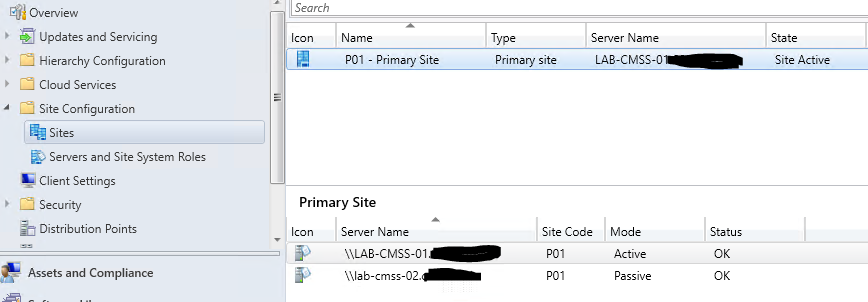
If you've followed my previous post about implementing SCCM site server high availability in a lab, this is a quick guide to demonstrate how to promote a passive mode site server to active mode.

  • In the SCCM console, navigate to Administration > Site Configuration > Sites
  • Select site and switch to the Nodes tab

  • Right Click the passive site server, click Promote to active, and Yes

  • Refresh the console to view the current status.

  • For more details, open Monitoring > Overview > Site Server Status and right click to Show Status


Install SCCM 1806 with HA Site Servers in a lab

I wanted to install a fresh SCCM environment in my lab to play around with the new funky features in SCCM 1806. What better excuse to start from scratch and create a new blog post!

This guide will walk you through installing a fresh SCCM 1806 environment and demonstrate the site server active/passive functionality. As you can see from the design below, only the SCCM site servers are highly available. In a production environment you'd host the site database on a SQL cluster or AOAG, and have multiple site systems hosting the SCCM client facing roles (MP, DP, SUP etc). This guide will not cover installing the SQL server. 


Prerequisites and Requirements

  • Configure a separate SQL Instance (HA in production).
  • Create a network location for site content library, read/write granted to site servers.
  • Both site servers need to be on same domain.
  • SCCM needs to be a standalone site.
  • Both servers must use the same remote database.
  • Both servers need sysadmin permissions on the site database SQL instance.
  • Both servers must be local admin on each other.
  • Both servers much be local admin on SQL server hosting site database.


Step-by-Step

1. Create SCCM user accounts

These accounts won't be used in this guide but are some of the standard accounts I use in a lab.

svc_cm_admin - default SCCM administrator account
svc_cm_djoin - domain join account
svc_cm_naa - network access account
svc_cm_push - client push account

2. Extend Active Directory schema


Run the extadsch.exe on a domain controller. extadsch.exe is provided on the SCCM installation media in: /SMSSETUP/BIN/X64

3. Create System Management container

  • Log on as an account that has the Create All Child Objects permission on the System container in Active Directory Domain Services.
  • Run ADSI Edit, and connect to the domain in which the site server resides.
  • Expand Domain <computer fully qualified domain name>, expand <distinguished name>, right-click CN=System, click New, and then click Object.

  • In the Create Object dialog box, select Container, and then click Next.

  • In the Value box, type System Management, and then click Next.

  • Click Finish.
  • Grant the computer account of each SCCM site system full control over the container and all descendant objects.

4. Install all prerequisites on each of the servers. 

Use the ConfigMgr Prerequisite tool to install all the required server roles applicable to each server.


 5. Install the Windows ADK on each site server.

  • Download and install the Windows 10 ADK from:

  • Select the following features:

6. Install SCCM on the active site server.

  • Initiate the installation of SCCM on the active site server (LAB-CMSS-01)

  • Enter product key
  • Download installation prerequisite content

  • Configure site settings


  • Do not install DP or MP roles at this stage


  • Once complete, configure discovery methods (forest discovery with boundary creation at a minimum) and then create a boundary group for your domain.

 7. Manage content library

The content library needs to be moved to a resilient file server in order to enable site server high availability. 
  • Within the SCCM console Administration > Site Configuration > Sites
  • Select the site and click Manage Content Library in the ribbon bar.
  • Enter the UNC path to the network share to host the content library
    • Monitor the distmgr.log for errors.
    • The new location needs to be a directory within a share
    • If the move fails initially, use the ConfigMgr service manager to restart the SMS_DISTRIBUTION_MANAGER component once you've resolved errors.


8. Install the passive site server.

Let's initiate the installation of the passive site server on LAB-CMSS-02. 

  • In the SCCM console Administration > Site Configuration > Sites
  • Click Create Site System Server
  • Enter the FQDN of the passive server and select the site.

  • Select the role Site Server in passive mode

  • Enter the path to source files, it's recommended to use the cd.latest folder in the site share.
  • Enter the installation folder on the destination server.


  • Monitor the installation progress in Monitoring > Site Server Status
    • Click Show Status for more detail.


9. Install additional SMS Provider

By default, only the original site server has the SMS Provider role. If this server is offline, you can't connect to the site as no provider is available. When you add the site server in passive mode, the SMS Provider isn't automatically added. Add at least one additional SMS Provider role to your site for a highly available service.
I'll install the SMS Provider role on the passive site server  (LAB-CMSS-02)

  • On the active site server, load the SCCM setup wizard from media, or click Uninstall/Change when selecting SCCM in Control Panel > Program and Features
  • Select Perform Site Maintenance or Reset This Site


  • Choose Modify SMS Provider Configuration

  • Choose Add a new SMS Provider and enter the FQDN of the passive site server.
  • Complete setup wizard.


10. Install site system

This final step installs the management point and distribution point roles on the separate site system. In a production environment it's recommended to have additional site systems for resiliency. 

  • Navigate to Administration > Site Configuration > Servers and Site System Roles
  • Click Create Site System Server
  • Enter FQDN of site system and select site in drop down box

  • Select Management Point and Distribution Point roles
  • Complete the rest of the wizard with settings to meet your requirements.

Test site server promotion

To test your new site server high availability, see this short blog post:


Slow BT Downloads on Synology Download Station through OpenWRT Router

Since flashing my TP-Link router with OpenWrt, I've noticed BT downloads on my Synology NAS were dead slow or non-starters. The Synology Download Station requires uPnP / NAT-PMP which OpenWRT does not have enabled by default.

Simple Fix

I was discouraged from enabling uPNP and NAT-PMP by the OpenWRT Wiki so decided to add static port forwarding to OpenWRT firewall instead.

After port forwarding the TCP and UDP ports listed in the Synology Download Station BT settings, download speeds were back to normal.

Applying OpenWRT to a TPLink TL-WR1043ND v1

Here are the steps I used to install OpenWRT on a TL-WR1043ND v1 then install LUCI web GUI.

Before proceeding, take a backup of current config, download original TP-Link firmware, and make a note of all settings.

1. Download the latest stable release (factory and upgrade) for TL-WR1043ND v1.x here 

2. Logon to router, System Tools -> Firmware Upgrade -> Browse


3. Select the factory OpenWRT file and click Upgrade

4. Allow the system to upgrade and restart.

5. Use telnet client (Tera Term/ Putty) to connect to 192.168.1.1
          Username: root
          Password: <blank>

6. Apply and verify PPPOE WAN settings with the following commands

uci set network.wan.proto=pppoe
uci set network.wan.username='USERNAME'
uci set network.wan.password='PASSWORD'
uci commit network
ifup wan

7. Before applying Luci web GUI package, resolve issues with low memory by disabling some distribution feeds.

vi /etc/opkg/distfeeds.conf

Comment all lines except 'base' and 'luci'
(INSERT key to edit, ESC key to finish, :x to save)

8. Apply Luci web GUI package

opkg update
opkg install luci

9. Browse to http://192.168.1.1 and logon with root

10. Use the web GUI to apply the 'upgrade' OpenWRT firmware file.

11. Repeat everything from step 4.

12. Use the web GUI to configure Wi-fi, firewall, etc.

I had an issue where the Wi-fi would drop out every 30 mins, to test a workaround fix run the following command to disable Adaptive Noise Immunity (will reset after reboot).

echo 0 > /sys/kernel/debug/ieee80211/phy0/ath9k/ani

If this solves the issue, apply permanently by adding above line to /etc/rc.local

The problem persisted, so I also tried adding the following to /etc/config/wireless

option disassoc_low_ack '0'
option wpa_group_rekey '0'

This didn't help either, so I ended up disabling wireless and plugged an old TP-Link AP in.


SCCM - WSUS MasterFrontEndServer Shared Database

I came across an issue recently where one of the SUP's in our SCCM environment failed to synchronize with Microsoft due to network issues.

I assumed the SUP being used for synchronization was the server shown with 'Microsoft Update' as the synchronization source. However, it turns out this wasn't the case. I had to view a record in the SUSDB to determine which system was actually synchronizing with MS.

To view the NLBMasterFrontEndServer, run the following SQL query on the SUSDB.

SELECT NLBMasterFrontEndServer
  FROM [SUSDB].[dbo].[tbReference]


SCCM Windows Update Compliance Reports Using Latest SUG

I've recently been working on some Window update compliance reports which dynamically retrieve compliance data for the latest SUG (Software Update Group) created on Patch Tuesday. This makes it easy for administrators and management to keep track of compliance without the need to find and select the latest SUG.

The SUG is deployed to two collections on the evening of patch Tuesday, one containing servers and the other workstations. We have a multi-tenant environment so the report splits these systems up by customer.

The compliance data is presented using pie charts on an SSRS report. I'll update this post at a later date with how I formatted these, for now I'll just provide the SQL we use to report on our server estate.


Prerequisites:

- Make sure your ADR is configured to create a new SUG each time it's triggered.
- Our ADR triggers on patch Tuesday (2nd Tuesday of the month).
- Create a separate database (Mine is called 'CM_Runtime') to store SQL functions. I wasn't too keen on defining functions on the CM database.

Create Functions:

To scope the report to a SUG created on the most recent patch Tuesday, we need to save some stored procedures ('PCC_SEC_TUESDAY'  and  'PCC_LAST_SEC_TUESDAY') in a runtime database which calculate the most recent patch Tuesday date based on the date the report is run using the following query:  SELECT [dbo].[PCC_LAST_SEC_TUESDAY](getdate())

Run the SQL statements below on the database created in prerequisite steps.

PCC_SEC_TUESDAY returns the 2nd Tuesday of the month that any date is in (@date would be the parameter.
================================================

CREATE FUNCTION PCC_SEC_TUESDAY
(
@p_date datetime
)
RETURNS DATETIME
AS
BEGIN
DECLARE @firstday AS DATETIME;
DECLARE @lastDay  AS DATETIME;
DECLARE @sectue   AS DATETIME;
--
DECLARE @today AS DATETIME -- for testing
SET @today = @p_date;


SET @firstday = DATEADD(MONTH, DATEDIFF(MONTH, 0, @today), 0)
SET @lastday = DATEADD(DAY, -1, DATEADD(MONTH, 1, @firstday));


--SELECT @today AS [Today], @firstday AS FirstDayOfMonth, @lastday AS LastDayOfMonth

WITH MyDates AS
(
    SELECT @firstday AS MyDate, DATENAME(DW, @firstday) AS NameOfDay
    UNION ALL
    SELECT DATEADD(DAY, 1, MyDate) AS MyDate, DATENAME(DW, DATEADD(DAY, 1, MyDate)) AS NameOfDay
    FROM MyDates
    WHERE DATEADD(DAY, 1, MyDate)<@lastDay
)
SELECT @sectue = Mydate 
FROM (
    SELECT ROW_NUMBER() OVER(PARTITION BY NameOfDay ORDER BY MyDate) AS RowNo, *
    FROM MyDates
    ) AS T
WHERE (RowNo=2 ) AND NameOfDay = 'Tuesday';
    RETURN @sectue;
END

================================================
PCC_LAST_SEC_TUESDAY
a) Works out the 2nd Tuesday of the month for the current date
b) If this is before or after the current date then return the 2nd Tuesday of the previous month
================================================

CREATE FUNCTION PCC_LAST_SEC_TUESDAY
(
@p_date datetime
)
RETURNS DATETIME
BEGIN
   DECLARE @lastsectue DATETIME;
   -- Get the 2nd Tuesday for the month of the date given
   DECLARE @thissectue DATETIME;
   SET @thissectue = dbo.PCC_SEC_TUESDAY(@p_date);
   -- is this date after the imput date
   IF @thissectue <= @p_date
   BEGIN
      SET @lastsectue = @thissectue;
   END;
   ELSE
   BEGIN
      -- previous months 
  DECLARE @monthago DATETIME
  SET @monthago = DATEADD(MONTH, -1, @p_date);
  SET @lastsectue = dbo.PCC_SEC_TUESDAY(@monthago);
END;
--
RETURN @lastsectue;
END;


Report SQL Query

The query to use in the SSRS report is below, the following strings will need editing to reflect your SCCM set up.

Customer A Device Collection ,'Customer B Device Collection'. - Used to split servers up by customer.
Server Software Updates  -- Name of the SUG deployment.
SUM | Server Software Updates - Name of collection the SUG is deployed to.
ADR | Server Software Updates - Name of the ADR used to create the SUG deployment.


declare  @collname  table(name  varchar(100));
declare  @title varchar(max);
declare @collid  table(id  varchar(100));
declare  @assignmentid table(id  varchar(100));
insert into @collname   values( 'Customer A Device Collection'),('Customer B Device Collection')
insert into @assignmentid   SELECT AssignmentID FROM v_CIAssignment WHERE 
CreationTime >= SELECT [CM_Runtime].[dbo].[PCC_LAST_SEC_TUESDAY](getdate()) 
and
CollectionName like 'SUM | Server Software Updates%' 
and
AssignmentName like '%Server Software Updates%' 
insert into @collid SELECT CollectionID from dbo.v_Collection where name in (select name from @collname)    -- Get Collection ID's from Collection names -- 
set @title = (SELECT Title
  FROM v_AuthListInfo WHERE 
  CI_UniqueID = (SELECT TOP 1 CI_UniqueID FROM v_AuthListInfo WHERE Title like 'ADR | Server Software Updates%' ORDER BY DateCreated DESC));
SELECT
@title AS SUG,
Count(StateID) AS Total,
Count(CASE When StateID = '1' OR StateID = '4' THEN 'OK' END) AS OK,
Count(CASE When StateID = '0' THEN 'Unknown' END) AS Unknown,
Count(CASE When StateID = 5 or StateID = 7 or StateID = 8 or StateID = 10 THEN 'Warning' END) AS Warning,
Count(CASE When StateID = 2 or StateID = 6 or StateID = 9 THEn 'Critical' END) AS Critical,
(SELECT name from dbo.v_Collection where CollectionID = v_fullcollectionmembership.collectionID) AS Collection
                FROM v_AssignmentState_Combined
INNER JOIN
v_R_System ON v_AssignmentState_Combined.ResourceID = v_R_System.ResourceID INNER JOIN
v_fullCollectionMembership on v_R_System.ResourceID = V_FullCollectionMembership.ResourceID
                WHERE 
v_R_System.ResourceID = v_AssignmentState_Combined.ResourceID AND
v_AssignmentState_Combined.AssignmentID in (SELECT id from @assignmentid)
AND
v_fullcollectionmembership.collectionID in (select id from @collid)
GROUP BY v_fullcollectionmembership.collectionID


Move WSUS content when running multiple SCCM SUPs, shared content and database

Recently I needed to relocated the WSUS content directory for an SCCM site which was running multiple Software Update Points with a shared content directory and SUSDB cross forest. It was pretty straight forward, but it needed a methodical approach to be successful.

High Level Steps:

1. Create a new directory and share.
2. Grant the appropriate permissions.
3. Stop WSUS on cross forest SUPs (all but one).
4. Run Wsusutil MoveContent command.
5. Alter registry and IIS on cross forest SUPs.
6. Start WSUS instances.

Detailed Steps:


1. Create Directory and Share

Create a directory and share for WSUS content, this could be on a file server or local. But it needs to be accessible by all SUPs over SMB using a UNC path. It should mimic the current content location in terms of permissions and network access.

2. Grant Permissions

SUP's will connect to the share using the computer accounts, so at least a one way inbound trust needs to exist beforehand. Grant the computer accounts for all SUPs 'Full Control' for the share and for NTFS.

The user account being used to run the wsusutil movecontent command will also need full control.

3. Stop WSUS on SUPs.

Stop the WSUS service and website on all SUP's except the SUP currently being used to synchronize with Microsoft Update (the WSUS master front end server).

Stop-Website "WSUS Administration"
Stop-Service WsusService -Force

4. Run WSUSUtil MoveContent command

On the currently active SUP, open an elevated command prompt and run the following command from c:\program files\update services\tools

Wsusutil.exe movecontent \\FQDN\SHARE\ c:\dir\wsuslog.log

This will move the content from the current directory to the share on server \\FQDN and output a log file to c:\dir\wsuslog.log. It's obvious, but make sure you use the fully qualified domain name and it's resolvable cross forest.

5. Alter registry and IIS on other SUPs

You could run the wsusutil moveconten command on each of the other SUPs with the -skipcopy flag. But I find it just as easy to alter the registry and IIS.

Update the 'contentdir' string in HKEY_LOCAL_MACHINE\SOFTWARE\Microsoft\Update Services\Server\Setup\  to reflect the share path  (i.e. \\FQDN\SHARE\ )

Open IIS, expand WSUS Administration, click on 'content' and select 'advanced settings'
Enter the full path to the wsuscontent folder on the share. i.e. \\FQDN\SHARE\wsuscontent\

6. Start WSUS on all instances

Once the registry entries and IIS has been updated, start the WSUS service and websites on all sups.

Start-Website "WSUS Administration"
Start-Service WsusService

About Me

My photo
Senior Consultant at CDW UK specialising in Microsoft workspace and cloud technologies.